Looking for help?
Youth like That
Fellowship Activity – Youth like That
The Fellowship Activity feature allows you to create and manage content posts across different sub-groups within the App. Content can include images, videos, audio files, or YouTube links.
Adding New Fellowship Activity Content
Follow these steps to add new content to the Fellowship Activity section:
- Go to Fellowship Activity in the App dashboard.
- Click the Add New button in the top right corner.
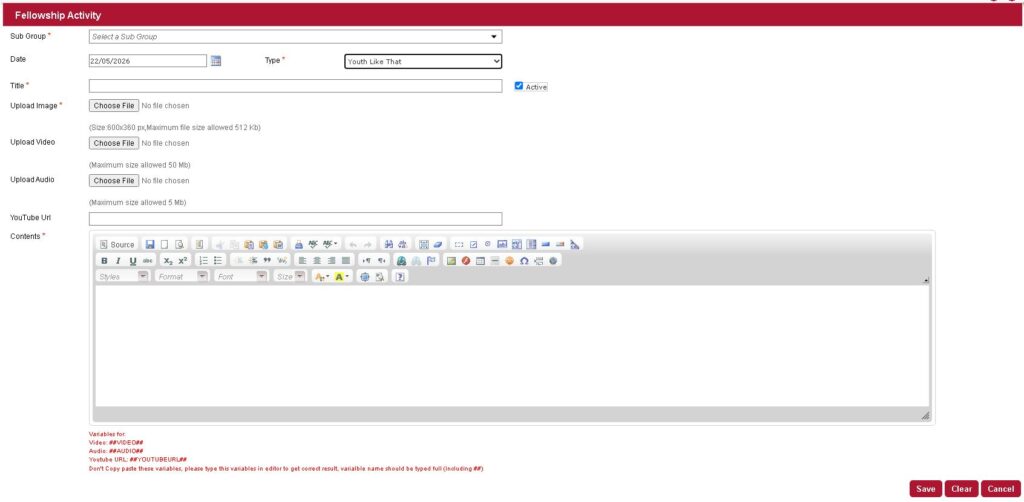
Complete the following fields in the Fellowship Activity form:
- Sub Group * – Select a sub-group from the dropdown menu.
- Date – Select the date using the calendar popup.
- Type * – Select the content type (e.g., Youth Like That, Women Shares, Men’s Forum, Know Your Roots, Pastor’s Desk).
- Title * – Enter the title of your content.
Uploading Media
Depending on your content type, upload the appropriate media:
- Active Upload Image – Upload an image (recommended size: 600×360 px, max 512 KB).
- Upload Video – Upload a video file (max 50 MB).
- Upload Audio – Upload an audio file (max 5 MB).
- YouTube Url – Enter a YouTube video URL.
Content Description
In the Contents field, use the text editor to add a description or detailed content for your post.
Media Variables
To display media correctly in the App, you must type the following variables directly into the Contents editor:
- For video content, type:
##VIDEO## - For audio content, type:
##AUDIO## - For YouTube content, type:
##YOUTUBEURL##
Important Note: Do not copy and paste these variables. Type them manually in the editor including the double hash symbols (##). The variable name must be typed in full exactly as shown above.
Saving Your Content
- After filling all required fields and uploading media, check the Active box in the status section.
- Click the Save button.
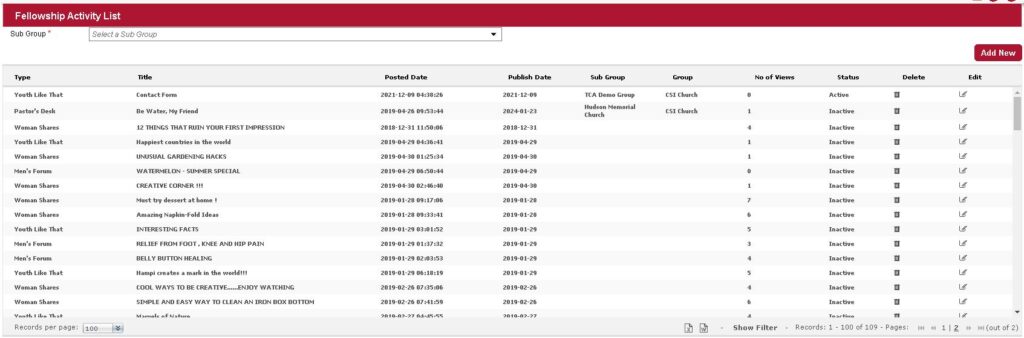
- The saved content will appear in the Fellowship Activity List.
Editing Existing Content
To edit existing Fellowship Activity content:
- Locate the content in the Fellowship Activity List.
- Click the Edit button (⬅️ icon) in the corresponding row.
- Make the necessary changes to the fields or media.
- Click Update to save your changes.
Understanding the Fellowship Activity List
The Fellowship Activity List displays all saved content with the following columns: